
AI email assistant tutorial: search your inbox and draft replies
Find a customer budget in your emails, distinguish a requested deadline from a promise, and prepare a reply you can review before sending.
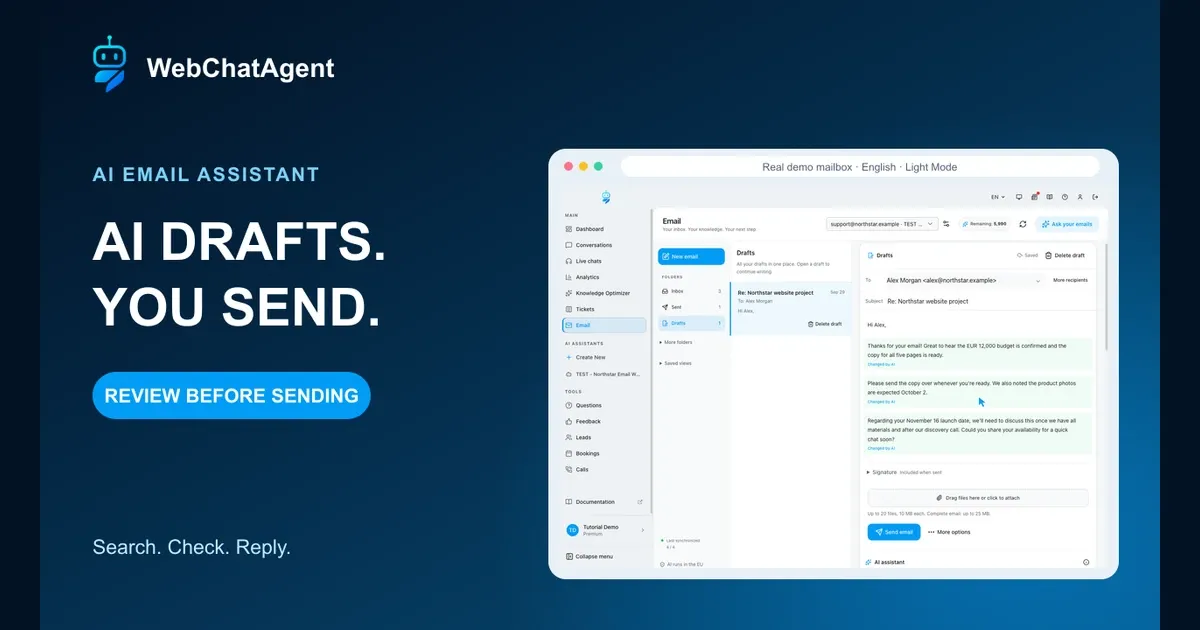
This AI email assistant tutorial follows a real email workflow: find a customer’s budget in the original messages, draft a reply and check it before sending.
This AI email assistant tutorial follows one everyday task: find what a customer actually agreed to, prepare an accurate reply and decide yourself when to send it. In WebChatAgent, you can ask questions about the permitted mailbox history, open the original emails and work on a reply in the same workspace.
Our fictional Northstar website project has a EUR 12,000 budget, five pages and an English contact form. Alex requests a November 16, 2026 launch, but Northstar has not promised that date. The copy is ready; the product photos are expected on October 2. We use those facts to test search, follow-up questions, draft generation and revision.
The screenshots show the real English interface in light mode. The mailbox was preconnected to a local GreenMail test server. We verified one local delivery and one matching Sent copy, with no external recipient. This is not proof of signing in to a commercial mail provider. For connection setup and incoming-mail rules, use the separate setup tutorial linked below.
Privacy-protected two-click player
AI Email Assistant Tutorial: Search Your Inbox & Draft Replies
Follow this AI email assistant tutorial to search your inbox, verify original emails, draft and revise replies, then review and send them yourself.
The YouTube player stays blocked until you choose Play. Loading it connects your browser to YouTube and may transfer technical data to Google.
Open directly on YouTubeWhat you will have at the end
- A precise mailbox question answered with original email evidence
- A clear distinction between a customer request and your own commitment
- A generated, revised and reopened reply draft with its AI conversation
- A human-reviewed send, with delivery and the Sent copy checked separately
- A waiting conversation with a reminder, without an automatic follow-up email
Before you start
- A WebChatAgent assistant with access to the Email channel and sufficient AI allowance
- A mailbox you are authorized to connect, with the provider’s connection details or supported sign-in method
- Working IMAP access for reading and mailbox drafts, plus SMTP for sending from the workspace
- AI mailbox search enabled and its permitted history fully indexed before the search exercises
- A low-risk test conversation with known facts and a recipient you control for any send test
Search, drafting and sending are separate decisions
Ask your emails searches the permitted, indexed email text and attachment filenames, with relevant assistant knowledge available as context. It does not search attachment contents. A generated answer helps locate information; the source email remains the record you check before relying on a budget, date or agreement.
The reply editor uses the current conversation to prepare or revise text. Creating a draft, reopening it and setting a reminder do not send an email. You review the recipient and content, then choose Send email. Automatic replies to incoming messages are a separate channel setting and stay in Create drafts mode throughout this example.
Importing searchable history uses the knowledge allowance. Questions and AI revisions use the message allowance shown in the workspace. Merely opening a message or an original source does not start an AI request. Check the live usage label because costs can differ by action and model.
01–15
Set it up step by step
Open Email and choose the correct mailbox
The Email workspace shows the Northstar mailbox, folder counts and an up-to-date search index with 4 / 4 emails.
Open Email in the dashboard sidebar. Check the mailbox selector at the top before reading, asking or replying. The demonstration uses support@northstar.example and the assistant TEST - Northstar Email Workspace. All names, addresses and messages are fictional.
Use Inbox, Sent and Drafts to switch between received messages, sent mail and unfinished replies. Ask your emails opens the mailbox question panel. New email starts a fresh message; we will use Reply later to keep our answer attached to the customer conversation.
Check the synchronization and index indicators before asking a factual question. Here, Search index up to date · 4 / 4 means all four messages in this controlled example are indexed. It does not establish that an unrelated mailbox, another folder or a longer history period is covered.
Check the mailbox identity and incoming connection
The settings show the mailbox address, sender name, provider sign-in option and stored local IMAP connection.
For your own connection, open the assistant and choose Channels, then Email. Enter the mailbox address you intend to use and a sender name recipients will recognize. These settings belong to the assistant whose mailbox and knowledge the workspace uses.
Use the sign-in method supported by your provider, or its documented IMAP details and an app password where required. The screenshot includes a Microsoft 365 sign-in option, but we did not complete that flow. The Active label belongs to our separately preconnected local test mailbox, not a demonstrated provider login.
The visible host 127.0.0.1, test ports and disabled SSL/TLS switches are for the isolated local GreenMail server only. Do not copy them into a production mailbox. Use the hostnames, ports, encryption and authentication specified by your actual provider.
Check SMTP, mailbox folders and Create drafts
The second settings view shows the full SMTP group, Test connection, mailbox folders and Create drafts selected.
Continue down the same settings page to Outgoing mail (SMTP). IMAP reads messages and stores mailbox drafts; SMTP sends messages. Configure working SMTP if you intend to use Send email in the workspace, even when Reply behavior remains Create drafts.
The screenshot labels SMTP optional and describes direct sending because the incoming-mail assistant can file drafts without sending them. That does not remove the SMTP requirement for a manual workspace send. Use IMAP credentials only if your provider actually uses the same authentication for both services.
Run Test connection with your real provider settings and resolve errors before relying on the channel. Check Inbox folder, Drafts folder and Sent folder against the mailbox folders. Leave Create drafts selected. This supplemental original frame shows the controls together; it is not a screenshot of a successful external connection test.
Limit the searchable history and wait for the index
Recipient filtering, previous correspondence, attachment handling and AI search are visible with a 12-month search period.
Choose the incoming folders relevant to this assistant. If several addresses share the mailbox, use Only these recipient addresses to limit which matching messages the workspace loads. Leave the field empty only when including all recipients is intended. Connect and index only mail you are authorized to process.
Enable AI search and questions about this mailbox, then choose Period for search and older emails. The screenshot shows 12 months. Select the shortest period that still contains the agreements you need, and wait for indexing to complete in the workspace. A configured period is not evidence that every older message has already been imported.
Read attachments and mailbox search are different features. The search index contains email text and attachment filenames, not the files’ contents, even when Read attachments is enabled for answering mail. Indexed text and filenames use knowledge allowance; questions and revisions use message allowance. Opening an email alone does not trigger an AI check.
Include previous correspondence gives incoming replies earlier context. It does not mean old emails are answered retroactively. If an agreement is missing from a search result, check folder selection, recipient scope, the time window and index readiness before changing your prompt.
Read Alex’s latest message before drafting
Alex’s September 28 email confirms EUR 12,000, says the copy is ready and expects product photos on October 2.
Open Re: Northstar website project in Inbox. Email history shows the loaded messages newest first. Read Alex’s latest message, then inspect the older messages rather than answering from the subject line or preview alone.
The latest message says the copy for all five pages is ready, confirms the EUR 12,000 budget and expects product photos on October 2, 2026. It asks for two suitable discovery-call options. The original inquiry also asks for an English contact form and requests a November 16 launch.
Northstar’s earlier reply explicitly says no delivery date has been confirmed. We have not connected a calendar or provided availability, so there is no evidence for a booked meeting or free time slots. Our reply will ask Alex for availability and keep the launch date subject to review.
Ask a precise question about the budget
The answer identifies EUR 12,000 and provides separate email evidence from September 25 and September 28.
Choose Ask your emails. Use the exact test question: “What budget did Alex confirm for the Northstar website project?” The contact and project names narrow the task. A question such as “What is the budget?” leaves the assistant to work out which customer and project you mean.
The observed answer identifies EUR 12,000 in Alex’s September 25 inquiry and the September 28 confirmation. Each claim has an Open original email card. The recorded result reported complete coverage of this permitted test index with no search warnings.
Read any coverage warning in your own result. Complete coverage is limited to the permitted indexed scope, not every email that exists. If the result is ambiguous, add a date range or sender. Check the usage label before submitting: this test displayed at least four message units per mailbox question, not a universal price for every action or model.
Open the original email behind the answer
The source dialog shows Alex’s original inquiry, the budget quote and the explicit distinction between a requested and agreed date.
Click Open original email on the September 25 source card. Check sender, recipient and date, then compare the highlighted quote with the complete message. The source says “Our budget is EUR 12,000.” It also says the requested launch date is not an agreed delivery deadline.
Use this check whenever a reply depends on money, scope, deadlines or a customer commitment. A source card tells you where a statement came from, but does not guarantee that the generated interpretation is right. Check newer messages too, because a later email may change an earlier agreement.
Close the dialog to return to the question conversation. Opening the source is not another AI request. The original email and the generated answer remain different records: the first is evidence; the second is an interpretation you can question.
Ask whether the launch date was actually agreed
The follow-up answer cites Alex’s requested date and Northstar’s message saying no delivery date was confirmed.
Continue in the same question conversation with the exact input: “Was November 16 an agreed delivery deadline, or only a requested launch date?” Keeping the follow-up in context makes the distinction explicit instead of asking the assistant to guess what “the deadline” means.
The observed answer returns two pieces of evidence: Alex calls November 16, 2026 a requested date, and Northstar says it has not confirmed a delivery date. The correct conclusion is that the customer asked for that launch, not that the team committed to it.
The expected October 2 photos are useful planning context, not proof that delivery is feasible. Before promising a date, a person must check capacity, materials and any later agreement. A more polished draft cannot replace that decision.
Start Reply from the customer conversation
The empty reply editor contains Alex as recipient, the existing subject and the AI assistant input.
Return to Alex’s conversation in Inbox and choose Reply on the latest incoming message. The editor prepares Alex Morgan <alex@northstar.example> and Re: Northstar website project. Check both fields before generating text, especially when the original message was forwarded or uses a different reply-to address.
Use More recipients if the real reply needs additional recipients, and inspect any existing copies carefully. Do not assume that a correct body makes the recipient list correct. For a completely new topic, use New email instead of attaching it to an unrelated thread.
The draft body is still empty in this frame. Scroll to AI assistant to describe the reply you want. You can use the conversation below the editor as a reference. Opening Reply has not sent anything, and a saved empty draft is not a completed answer.
Generate a reply with explicit factual limits
The generated reply keeps the budget and photo date, asks for call availability and leaves the requested launch subject to review.
In AI assistant, submit the tested brief: “Write a warm reply to Alex. Thank him for confirming the EUR 12,000 budget and the five pages of copy. Ask him to send the copy and to share his availability for a discovery call. Acknowledge that photos are expected October 2. Explain that the requested November 16 launch date still needs review. Do not invent time slots or promise a delivery date.”
The resulting draft thanks Alex, retains EUR 12,000 and the five pages, requests the copy, mentions the expected photos and asks for discovery-call availability. It says the November 16 request needs review once the materials and discussion are available. It does not supply made-up slots or claim that a meeting was booked.
Read the visible draft itself, not only the assistant’s message saying it has finished. The highlighted paragraphs show AI changes. Confirm each number and date against the conversation, inspect the signature and correct anything that is missing. Generate is a writing step, not a send approval.
Shorten the draft without changing the agreement
The revised paragraphs use a friendlier tone while keeping EUR 12,000 and the need to discuss the launch date.
Use the same AI assistant conversation for the exact revision: “Make it shorter and friendlier. Keep the budget and the request for call availability. Do not add a delivery promise.” A focused instruction tells the assistant what may change and which facts must remain.
The observed revision keeps EUR 12,000, the five pages and October 2 photos. It asks for availability for a quick chat and still says the November 16 date needs discussion after the materials and discovery call. Compare this wording with the first draft; shorter text still needs a factual review.
If a critical sentence should not change, protect that paragraph before another revision. More options provides Previous drafts for inspecting earlier versions. Each new AI revision uses allowance. Make small manual edits yourself when another generated version would add no value, and wait for Saved afterwards.
Leave the draft and reopen the saved version
The reopened draft shows Saved, the same recipient and subject, and the revised reply text.
Wait until the editor shows Saved. Open another workspace view, then return to Drafts and select Re: Northstar website project. Confirm that you have reopened the existing reply rather than creating a second draft.
In the local test, the revised text, recipient and subject remained unchanged. The saved AI conversation also retained the original generation request and the revision request. You can therefore continue with the reasoning behind the draft, not just its latest text.
Drafts brings workspace drafts and mailbox drafts together. Check for a warning that the provider copy changed or could not synchronize before continuing. If someone edited the draft in another mail client, resolve the version difference first. Saved describes persistence, not successful delivery.
Review the reply and send it yourself
Email sent confirms the send, while the notice still says that saving the Sent copy is pending.
Before choosing Send email, review To, any copied recipients, the subject, signature and attachments. Check the EUR 12,000 budget, website scope, missing photos and the wording about November 16. The message asks for availability; it does not claim to have booked a call or guaranteed a launch.
Choose Send email only after that review. The screenshot shows Email sent and “Sent successfully; saving the Sent copy is pending.” Sending through SMTP and saving a copy to Sent through IMAP are separate operations. Try again in this notice retries saving the copy, not sending another email.
We checked the local server separately: exactly one message reached the fictional recipient inside GreenMail, and exactly one matching Sent copy was present over IMAP. The screenshot itself still shows the pending notice. There was no external delivery, and this test does not prove deliverability for your provider. If sending itself is uncertain, check the mailbox and provider status before sending again.
Set Waiting for a reply and a reminder
The conversation appears in Waiting for a reply with a manually set status and an October 2, 9:00 AM reminder.
Open the conversation after sending. Under More options, set Follow-up status to Waiting for a reply. The Set by you label distinguishes this manual decision from an AI assessment. Open Saved views and choose Waiting for a reply to find the conversation again.
Use Set reminder to choose when to revisit it. The captured example shows October 2, 2026 at 9:00 AM in the local display; the stored reminder was verified separately. Check the displayed date and timezone when setting your own reminder. Due reminders is the view for reminders whose time has arrived.
This status and reminder do not schedule an automatic email. Draft a follow-up is available when a further message is appropriate, but no follow-up message was generated or sent in this test. Review a future follow-up as a new draft, and do not invent urgency or an agreement the customer never made.
Keep automatic incoming replies in draft mode
The Enable direct send? confirmation is open; it was not confirmed, and the verified saved mode remained draft.
Return to Channels → Email to distinguish the daily workspace from incoming-mail automation. Create drafts lets the incoming-mail assistant prepare replies for a person to review. Send directly is a separate choice that permits automatic sending under the configured rules.
The screenshot deliberately shows the confirmation dialog for direct sending, not an enabled and saved automatic-send configuration. Choose Cancel to keep this tutorial in draft mode. The saved settings were checked after the demonstration and still contained mode draft.
You do not need Send directly to manually send a reviewed workspace reply. If you later choose automation, first test knowledge requirements, allowed and blocked topics, attachment behavior, hourly limits and escalation handling. The linked setup guide covers those settings; this guide has verified the human-reviewed daily workflow.
Example & result
See the practical test and its result
Every tutorial includes a fixed input, the expected outcome and a transparent record of what was actually verified locally.
Practical example: AI email assistant tutorial: inbox search and draft replies
This exact scenario was completed with the temporary tutorial account.
Exact test input
In the fictional Northstar mailbox, ask: “What budget did Alex confirm for the Northstar website project?” Then ask: “Was November 16 an agreed delivery deadline, or only a requested launch date?” Prepare a reply, review it and send it only to the local test mailbox.
Expected result
The answer cites EUR 12,000 from the original emails. November 16 remains a requested date, not a confirmed promise. The reviewed reply preserves those facts and is sent once to the local test mailbox.
What was actually verified
The real search returned EUR 12,000 with two email sources and distinguished the requested launch from an agreed deadline. The draft was generated, revised, saved and reopened. One local SMTP delivery and one Sent-folder copy were verified separately; the captured UI still showed the copy as pending. No external email was sent, no real provider login was tested and automatic replies stayed in Create drafts. The test account was deleted with remainingUsers: 0.
Tips & tricks
Make the setup reliable
Test with realistic examples, record your baseline and change one setting at a time. That makes real improvements visible.
Ask with a contact, project and decision in mind
“What budget did Alex confirm for the Northstar website project?” gives the search an identifiable subject. Ask a separate follow-up about whether a date was agreed. Keep useful evaluation questions and repeat them after changing the mailbox scope or assistant model.
Keep the searchable source current and focused
Use the folders and history you actually need. Avoid importing copied archives as extra evidence for the same agreement, and inspect later messages for corrections. After a relevant new email or scope change, check synchronization and indexing before reusing an earlier answer.
Use model changes only when the same test improves
Start with the assistant’s configured model and compare accuracy, response time and the displayed allowance cost. Test the known budget and the unconfirmed launch with identical inputs before choosing a more expensive model. A stronger model cannot retrieve messages outside the permitted index.
Protect meaning when you change the tone
Tell the assistant which numbers, conditions and caveats must survive a revision. Compare the result sentence by sentence where a promise could change. Protect approved paragraphs or make a manual correction instead of repeatedly requesting a completely new version.
Test sending with a recipient you control
Use a non-sensitive message and a test recipient you control before sending a customer reply. Check arrival and the Sent folder separately. The local GreenMail result here proves that one controlled workflow ran; it does not establish external delivery, spam placement or your provider’s authentication.
Give reminders a purpose, not a default email
Choose a reminder date when you have a reason to revisit the thread, such as the expected photos on October 2. Read any new reply before drafting a follow-up. Waiting for a reply records the current state; it is not permission to send a sequence of automatic messages.
When something does not work
Troubleshooting
Check status, permissions and test data systematically before changing the model or prompt.
Ask your emails is not ready
Check that AI search is enabled for the selected mailbox and wait for the search index to finish. Inspect synchronization errors and the permitted folders and period. Seeing messages in Inbox does not by itself prove that they are ready for AI search.
The answer misses an email or reports limited coverage
Open the original message directly and check its folder, recipient and date against the configured scope. Add the contact and project to the question. Do not treat a missing search result as proof that no agreement exists, and wait for newly permitted messages to be indexed.
Search cannot answer a question about an attachment
Mailbox search indexes attachment filenames, not file contents. Read attachments is a separate reply-processing setting. Open the file through your normal approved workflow to check its contents; do not infer document facts from its filename or from an unsupported AI answer.
An AI request cannot run because allowance is exhausted
Read the allowance and action cost shown before submission. Mailbox questions and draft revisions can have different costs. Review the account’s usage and model selection, and avoid repeating unchanged requests. Opening existing emails and source evidence is not another AI request.
The draft invents availability or turns a request into a promise
Do not send it. Open the supporting messages, then explicitly request a correction that preserves the budget and says the date is still subject to review. Without verified calendar availability, ask the customer for preferences. Re-read the corrected draft; the assistant’s completion message is not a factual check.
A reopened draft differs from the version you reviewed
Check Saved status, synchronization warnings and Previous drafts. The mailbox copy may have changed in another client. Resolve the difference before editing or sending, and keep one reviewed reply rather than creating duplicate drafts to bypass the warning.
Create drafts is selected, but manual sending fails
Manual workspace sending still needs SMTP. Check the provider’s outgoing server, credentials, port and encryption, then use Test connection. Keep incoming-mail automation in draft mode while resolving the connection; enabling Send directly is not a fix for missing SMTP.
Email sent appears together with a pending Sent copy
Separate sending from saving the copy. Check the configured Sent folder and IMAP access. Try again on the pending-copy notice retries that storage operation, not delivery. If delivery itself is uncertain, inspect the mailbox and provider status before initiating another send.
The reminder did not send a follow-up email
That is expected. A reminder marks when to revisit the conversation, and Waiting for a reply is a status. Open Due reminders when it becomes due, read the latest messages and choose Draft a follow-up only if a further reply is appropriate. Review and send that draft yourself.
Ready for a production-style test
Repeat the workflow with one authorized, low-risk conversation in your own mailbox. Write down the known facts and missing information first. Verify the source-backed answer, the saved draft and any test delivery before using the workflow for a real customer. Keep incoming replies in draft mode until you have separately evaluated automation.
Related resources
Connect the email assistant and configure incoming replies
The separate setup tutorial covers mailbox connection, reply rules and optional direct sending.
Email integration overview
See how the email channel fits your assistant and its existing knowledge.
WebChatAgent documentation
Check the current field reference and provider-specific requirements before connecting your mailbox.