
Sell AI chatbots to clients under your brand: from test chatbot to paying client
One agency, one prospect, one paying client: build a test chatbot on the prospect’s website, convert it after the yes, hand it over and sell a fixed package.
To sell AI chatbots to clients, you need a demo that convinces, a package you can split and accounts your clients log in to under your brand.
You run an agency and your clients ask about AI chatbots. Building the software yourself takes months, and hardly anyone buys a chatbot they have not tried. The white-label platform lets you sell AI chatbots to clients under your own brand and on your own domain, and every prospect gets a test chatbot first.
This guide follows one example from start to finish. The agency is Bluepeak Studio, the prospect is Northstar Services, an IT company in Berlin, and two existing clients, Miller Bakery and Riverside Florist, already share the package. Every screen is a real local test dashboard with fictional data.
Plays right here, no third parties
Sell AI Chatbots to Clients Under Your Brand: Test Bot to Paying Client
Sell AI chatbots to clients under your brand: package pools, test chatbots for prospects, converting, client accounts, quotas, permissions and the archive.
What you will have at the end
- You know what your package contains: a chatbot pot, a message pot and training content, shared by all clients
- Your domain, brand and email sender, so clients never see another name
- A test chatbot for a prospect, trained on the prospect’s website and shown on a demo page
- The test chatbot converted after the yes and handed over to the new client
- A client account with a fixed package of chatbots and messages
- Dashboard permissions with a locked preview as an upsell
- The client logs in on your domain and finds their chatbot and conversations
- You manage clients and know what the archive keeps and deletes
Before you start
- An active white-label package, for example Growth with 10 chatbots and 15,000 messages a month
- Access to your domain’s DNS settings and, if you want emails from your own address, your mail server’s SMTP details
- The prospect’s website address and their permission to build a demo on it
- A demo page of your own where you can paste the embed code
Test chatbot → Convert → Assign & split
Your package is two pots. The chatbot pot sets how many chatbots run at the same time, the message pot how many messages all of them answer together each month. With the standard AI model, a visitor’s question counts as one message and the answer as another. A third, smaller pot holds the training content.
All clients draw from these pots. An empty field gives a client free access to the pot, a number caps them. A cap is not a reservation: if the message pot runs empty, every chatbot stops answering until next month. Keep a buffer for your test chatbots.
01–21
Set it up step by step
Check your package: two pots
Under Admin, Users you see what is used and what you have handed out.
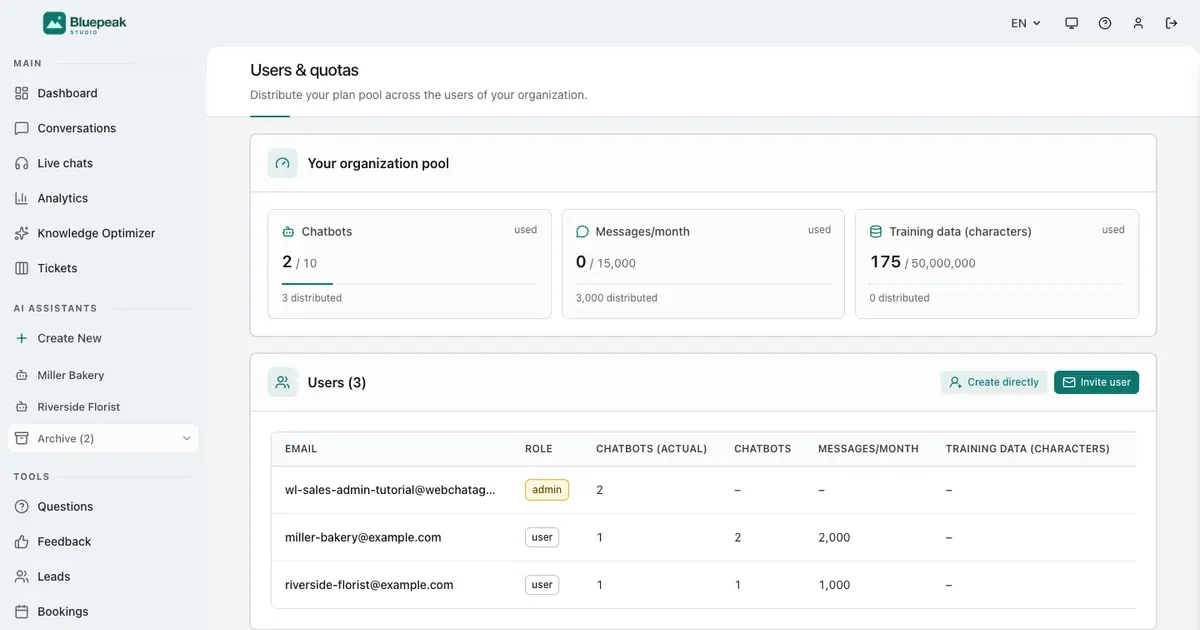
Open Users in the Admin section of the sidebar. The card Your organization pool shows three tiles: Chatbots, Messages/month and Training data. Each tile shows what is used right now and, below, how much you have already distributed to clients.
In the example, two of ten chatbot slots are in use and 3,000 of 15,000 messages are distributed: 2,000 to Miller Bakery and 1,000 to Riverside Florist.
Connect your own domain
One CNAME record at your domain provider.
Under Account, your domain shows as Not verified until its DNS record is live. Set up DNS shows the record to add at your domain provider: a CNAME that points your subdomain, in the example chat.bluepeak.example, to the platform. If your provider cannot set a CNAME, use the A record the page offers as option B.
Your clients log in on this domain, the chat widget loads from it, and the links in your emails point to it. Once the record is live, Check DNS now verifies it. That usually takes five minutes to an hour.
Your brand and the powered-by link
Name, logo, favicon, color and the line at the bottom of every chat window.
Below, Branding & whitelabel sets the platform name, logo, favicon and primary color. Clients only ever see your name, logo and colors.
Powered-by text and Powered-by link appear at the bottom of every chat window. Point the link to your own website, so every visitor of your clients’ sites can find your agency.
Send emails under your name
Email / SMTP: server, login, sender address.
Without your own mail server, invitations and notifications go out through the platform sender. Under Email / SMTP, enter host, port, username and password of your mail server plus a sender name and address, and every email to your clients comes from you.
Test connection checks the settings before you click Save. Every field is explained in the white-label admin guide.
Create a test chatbot for the prospect
Create New, a name, and the box Test chatbot.
Click Create New in the sidebar, enter the prospect’s name and tick Test chatbot (archived after 14 days). Only you as the white-label admin see this box.
A test chatbot does not take a slot from your chatbot pot. Its messages and training content still come out of your package. It shows a Test badge in the sidebar and a banner with the date it moves to the archive.
Three days’ notice
Three days before the test period ends, you receive an email. That leaves time to convert a chatbot whose contract is still being signed.
Train it on the prospect’s website
Open Knowledge, click Add Data Source, choose Website.
Open the Knowledge tab, click Add Data Source and choose Website. Enter the prospect’s address and click Add & Index. The chatbot reads the pages by itself; the row switches to Completed when it is done.
Copy the embed code
Channels, Chat widget: two lines that load from your domain.
Open the Channels tab and choose Chat widget. Install chat widget shows the embed code: two lines, and both point to your own domain, not to ours. Click Copy code.
Paste it into the HTML of a page, right before the closing body tag. Check installation later confirms that the widget loads there.
Show it on a demo page
A copy of the prospect’s homepage with the chatbot on it.
Paste the code into a demo page, for example a copy of the prospect’s homepage, so they see the chatbot right where it would live. Send them the link. They ask their own questions and the chatbot answers from their website. At the bottom the widget says Powered by and the name of your agency.
They say yes: convert the test chatbot
Convert to regular chatbot keeps everything and takes one slot.
Open the test chatbot and click Convert to regular chatbot in its banner. Prompt, knowledge and design stay. From now on it takes one slot from your chatbot pot, in the example three of ten.
No free slot?
Converting needs a free chatbot slot. If the pot is full, add a bot slot or upgrade your package first.
Create the client account
Create directly: name, email, password, no email is sent.
Under Users, click Create directly and enter name, email address and a password with at least one capital letter and one number. No email goes out; you pass on the login yourself. Invite user sends an invitation link instead.
Hand over the chatbot
In Settings, under Name & Access, pick the Assigned user.
In the chatbot’s Settings, choose the client under Assigned user. It is saved right away. The chatbot, its knowledge and its conversations now belong to the client, along with the messages already counted this month.
Alternative: create the chatbot in the client account
Log in as this user, then Create New.
In the user list, click Log in as this user next to an existing client and create the chatbot with Create New right there. It belongs to the client from the start and counts against their allowance. Exit in the orange bar takes you back.
Sell a package: set the allocations
The pencil opens Quota allocations.
Click the pencil (Edit allocation) next to the client. Under Quota allocations, enter the package you sold, for example one chatbot and 1,500 messages a month. On the pool card, the distributed messages rise from 3,000 to 4,500.
- Empty field: the client draws freely from your pot
- A number: a cap for this client, not a reservation
- Raising a number only works while the pot still has room
Permissions and the locked preview
Restrict dashboard access, then tick what they paid for.
In the same window, switch on Restrict dashboard access and tick only what the client paid for, in the example Chatbot Management, Conversations and Leads. Anything else can stay visible with Show as locked preview: the client sees that it exists and can contact you to unlock it.
Your client logs in on your domain
Your logo on the login page, your colors in the dashboard.
The client opens your domain and logs in with the details you gave them. The dashboard shows your logo and colors and only the areas you unlocked.
Their chatbot and conversations
Every chat lands under Conversations.
Under their chatbots, the client finds the one you built. Under Conversations, every chat is listed; the eye icon opens the full conversation, including the question from the demo page.
The locked preview from the client side
Analytics is visible but locked, with a contact button.
A feature set to locked preview appears with a lock in the sidebar. The page shows a blurred preview and a button to contact you. That is your upsell, without a sales call.
Walk the client through it: test in their account
Log in as this user, open the chatbot, Test chatbot.
On a call with the client, click Log in as this user. The orange bar shows whose account you are in. Open their chatbot and click Test chatbot in the header: ask a question the way a customer would, and the chatbot answers from their website, right inside their account.
When a client leaves: disable or delete
Disable keeps the allowance, Delete frees it.
Disable blocks the client’s login and keeps their allowance reserved. Delete removes the client and their chatbots for good, together with knowledge, leads and phone numbers, and frees their share of your pots. To keep a chatbot, set it back to Not assigned first.
No deal? The archive
After 14 days, a test chatbot moves to Archive at the bottom of the list.
An archived chatbot stops answering, and its chat window disappears from the website. Prompt, settings, sources and design stay saved; the indexed content is removed and no longer uses training data. The page shows the date it is deleted for good, four months after archiving.
Reactivate or delete for good
Reactivate needs a free slot and reads the content in again.
If the prospect comes back, click Reactivate. The chatbot becomes a regular chatbot, takes one slot and reads its content in again, which takes a few minutes. A connected mailbox you switch back on yourself. Delete for good removes a chatbot nobody will come back for.
Example & result
See the practical test and its result
Every tutorial includes a fixed input, the expected outcome and a transparent record of what was actually verified locally.
Practical example: Sell AI chatbots to clients under your brand: from test chatbot to paying client
This exact scenario was completed with the temporary tutorial account.
Exact test input
As Bluepeak Studio on the Growth package, create the test chatbot Northstar Services, train it on the prospect’s website, ask “Do you also help on site?” on a demo page, convert it, create the client northstar-services@example.com, assign the chatbot, allocate 1 chatbot and 1,500 messages, restrict the dashboard to chatbot management, conversations and leads with Analytics as a locked preview, then log in as the client.
Expected result
The test chatbot uses no chatbot slot until it is converted, then the pool shows 3 of 10. Distributed messages rise from 3,000 to 4,500. The client logs in on the agency domain, sees only the unlocked areas, finds the demo conversation and sees Analytics locked with a contact button.
What was actually verified
Recorded end to end in a local test environment: the crawl of the four demo pages completed, the widget answered from the website and showed Powered by Bluepeak Studio, the conversion raised the pool to 3 of 10, the allocation raised distributed messages to 4,500, the client session held on the agency domain after a reload, and the test chatbot answered “open on Saturdays from 9:00 to 13:00” inside the client account. Two earlier test chatbots were archived through the app’s archive path; one was reactivated, one deleted for good.
Tips & tricks
Make the setup reliable
Test with realistic examples, record your baseline and change one setting at a time. That makes real improvements visible.
Sell fixed packages
Give every paying client a number for chatbots and messages. Then one busy client cannot use up what the others need, and you know what you have sold.
Keep a buffer in the message pot
Test chatbots and clients without a number draw from the same pot. Leave room so a demo week does not stop your paying clients’ chatbots.
Convert before you assign
Converting checks a free slot of the current owner. Convert while the chatbot is yours, then hand it over and set the package.
When something does not work
Troubleshooting
Check status, permissions and test data systematically before changing the model or prompt.
I do not see the Test chatbot box
Only the white-label admin sees it, and only in the Create New dialog. If you are logged in as a client, click Exit in the orange bar first.
Convert to regular chatbot fails
No chatbot slot is free. Check the Chatbots tile under Users, then add a bot slot or upgrade your package.
I cannot raise a client’s message allocation
The allocations of all clients plus the usage of clients without a number would exceed the pot. Lower another allocation or add a message pack.
The client cannot log in
Clients log in on your domain, not on webchatagent.com. Also check that the client is not disabled in the user list.
Ready for a production-style test
Set up your own domain and branding with the white-label admin guide, and plan your client packages with the agency packages tutorial.