
Chatbot features explained: set up all eight functions, with examples
One example company, eight functions: what each one does, how to set it up and what the visitor sees in the chat.
Chatbot features decide whether a visitor leaves with an answer or with an appointment, a callback or a person on the line.
A chatbot that only answers questions loses every visitor who wants more: a quote, an appointment, a real person or the status of an order. The Functions tab decides what your chatbot can do besides answering. There are eight functions in four groups, and each one is switched on, set up and tried the same way.
This guide uses one example from start to finish: Northstar Services, a small IT company. Every screen comes from a real local test dashboard, and every chat is a real conversation with the chatbot. Names, emails and the order are fictional.
Plays right here, no third parties
Chatbot Features Explained: Appointments, Leads, Live Chat & API (All 8)
Chatbot features in practice: contact details, appointments, passing on, live chat, questions, feedback, web pages and other systems, tried in a real chat.
What you will have at the end
- You know what each of the eight functions does and which group it belongs to
- Contact requests with exactly the details you need, and callbacks on request
- Appointments booked in the chat, with types, booking rules and working hours
- New requests and appointments passed on to Zapier, Make, n8n or HubSpot
- A person takes over the chat when a visitor asks for one
- You see which questions the chatbot could not answer and what visitors think of the answers
- The chatbot reads live web pages and looks things up in your shop or other systems
Before you start
- A chatbot with knowledge, for example your website or a document
- For Pass on automatically, Live chat, Search websites and Connect other systems: the Standard plan or higher, or the free trial
- For Connect other systems: an interface (API) of your shop or tool, and its access key if it needs one
Switch on → Set up → Try in the chat
Every function works the same way. Its switch turns it on, and only then do its settings appear. Most changes save themselves; the webhook and new connections have their own Save button. Then you try it as a visitor would: in the chat window on your website or with Test chatbot.
Switch on only what you need. Every function gives the chatbot one more thing to consider, and the more you switch on, the longer an answer may take.
01–20
Set it up step by step
Open the Functions tab
Eight functions in four groups, each with On or Off.
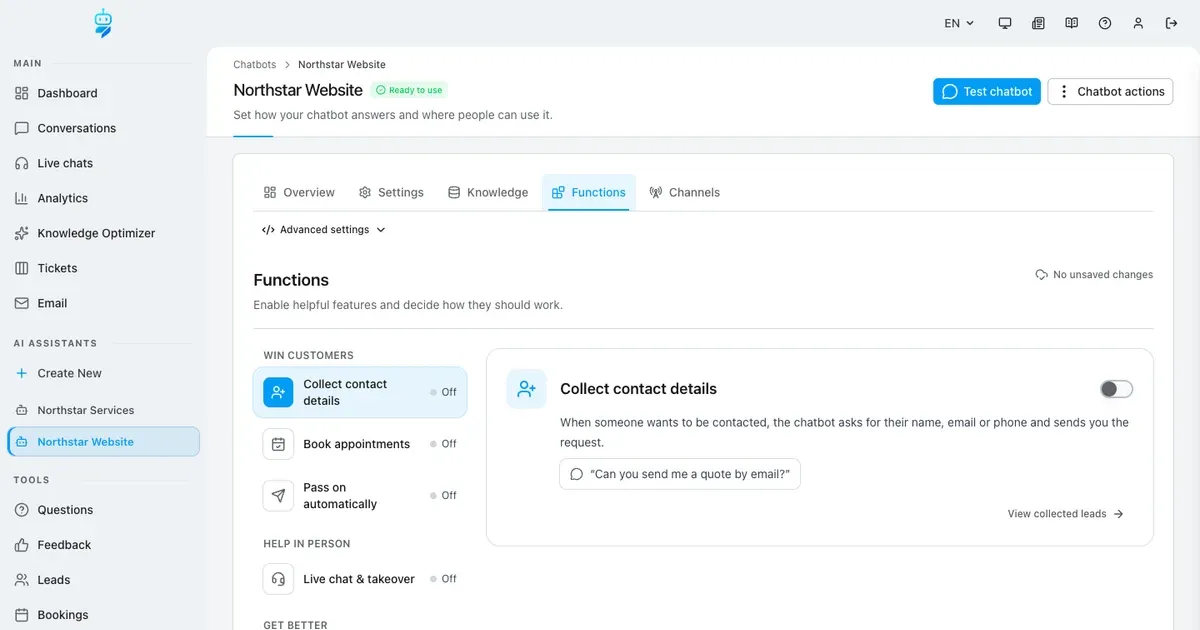
Open your chatbot and click Functions. The list on the left is sorted by goal: Win customers, Help in person, Get better and Know more. Next to each function you see On or Off; a lock means your plan does not include it yet.
Click a function to see its card on the right: one sentence on what it does, an example of what a visitor might write, and the switch. On a phone, the list comes first and the card opens on its own page.
Collect contact details: choose what the chatbot asks for
Required, If possible or Don’t ask for every detail.
When someone wants to be contacted, the chatbot asks for their details and passes the request on to you. For name, email, phone and request you choose: Required means the chatbot insists, If possible means it asks once but does not push, Don’t ask leaves the field out.
Northstar wants a phone number but does not need one, so phone is set to If possible. Email and phone cannot both be Don’t ask, unless callbacks are offered.
Callbacks, passing on and extra details
No question gets lost, and you get the details you need.
Offer a callback lets visitors ask to be called back at a time that suits them. Offer to pass it on when the chatbot doesn’t know matters most: when the chatbot has no answer, it offers once to pass the question on to your team.
Extra details adds up to five more questions, as text, email, phone, number, dropdown list or yes/no box. Northstar asks for the company name. Notify me by email sends every new request to the addresses you add, or to your account email if you leave it empty; extra addresses need a paid plan.
Try it: a visitor asks for a quote
The chatbot asks for the details and saves the request.
On the Northstar website, a visitor writes: “Can you send me a quote for IT support by email?” The chatbot asks for the contact details it needs. The visitor sends name, email and company in one message, and the chatbot confirms that the request was passed on to the team.
Every request under Leads
View collected leads opens the list.
View collected leads, or Leads in the Tools section of the sidebar, lists every request with name, email, phone and what it is about. Filters, search and export help when the list grows.
Book appointments: calendar and appointment types
Up to five types, from 15 minutes to 4 hours.
Where do appointments go? Either into Google Calendar, which you connect once with your Google account, or into the calendar built into the platform. Northstar uses the built-in one.
Under Appointment types, Northstar offers a free consultation of 30 minutes and an on-site IT check of one hour, each with a short description. With more than one type, the chatbot asks which one is meant.
What the chatbot asks, and when people can book
Earliest booking, how far ahead, breaks and working hours.
What does the chatbot ask before booking? works like contact details. Keep email required: without it, the visitor gets no confirmation. Ask what it is about adds a field for the topic.
Northstar takes bookings two hours ahead at the earliest, up to 14 days ahead, with a 15-minute break after each appointment, inside working hours from Monday to Friday, 9 to 5. Also use on phone calls lets the phone assistant book too; on the phone it only asks for the name.
Try it: the booking card in the chat
Day tabs, free times and details filled in from the chat.
The same visitor asks for a free consultation. The chatbot shows a booking card with one tab per day and the free times. Name and email are already filled in, because the visitor wrote them in the chat before. One click books the appointment, and the visitor gets a calendar invitation by email.
The booking card appears only in the website chat. In other channels, such as WhatsApp, the chatbot answers in text.
Every appointment under Bookings
View bookings opens the list.
View bookings, or Bookings in the Tools section of the sidebar, shows every appointment with type, customer, start and end. You also get an email for every new booking if Email me about new bookings is on.
Pass on automatically: webhook
New requests and appointments go to Zapier, Make or n8n.
Pass on automatically sends every new contact request and appointment to your other tools, for example into your CRM or a spreadsheet. It needs the Standard plan or higher. For a webhook, paste the https address from Zapier, Make or n8n, choose under What to pass on? what should go there, and click Save.
You then get a secret key, shown only once: copy it, your system uses it to check that the data really comes from you. Test sends sample data, and the line below shows whether it arrived.
Pass on automatically: HubSpot
Requests as a note, appointments as a meeting.
If you work with HubSpot, connect it directly with an access key of a private app. How to get the key lists the four steps in HubSpot; only super admins of your HubSpot account can create the key. Contact requests then arrive in HubSpot as a note on the contact, appointments as a meeting.
Live chat & takeover: settings
Name first, office hours and a waiting time.
When a visitor wants a person, the chatbot hands the chat over to your team. Live chat needs the Standard plan or higher. Before handing over, the chatbot asks for the name and, if possible, the email.
Only at certain times offers a person only when someone is there, for example Monday to Friday, 8:00 to 20:00. Outside these hours, the chatbot takes the request instead if Collect contact details is on. Waiting time sets how long the visitor waits: if nobody replies within it, the chatbot takes over again.
Take over a chat
Live chats shows the request with the whole conversation.
A visitor writes: “Can I talk to someone from your team?” The chatbot asks for the name and hands over. Your team sees the request under Live chats in the sidebar; one click opens the whole conversation, so nobody has to ask again.
The first reply takes over the chat, and the visitor sees that a person is answering now. When it is done, end the live chat and the chatbot takes over again.
Analyse questions and collect feedback
Find knowledge gaps and see what visitors think.
Analyse questions records what visitors ask and marks the questions the chatbot could not answer. Untick Also log answerable questions if you only want the gaps; logging everything can slow answers down a little. Emails only arrive for questions without an answer.
Collect feedback lets visitors rate answers. With Show thumbs under every answer, one click is enough; visitors can also write their feedback in the chat. You get an email for feedback the chatbot takes in the chat, not for a thumb click.
Under Questions: what is missing
A question without an answer is marked as no information.
The visitor asks “Are you open on Saturdays?” and “Do you also repair printers?”. The first one is in the knowledge, the second is not: the chatbot says so honestly and offers help from the team. Under Questions, the printer question is marked as no information. Now you know what to add to the knowledge.
Under Feedback: thumbs and written criticism
Positive and negative feedback, with the conversation.
The visitor gives the Saturday answer a thumbs up and writes that they expected a clearer answer about printers. Both appear under Feedback, the thumb as positive feedback, the written criticism as negative feedback.
Search websites: a group of live pages
Name, when to search and up to ten pages.
Search websites lets the chatbot read pages live, for things that change often: prices, timetables, availability or a status page. It needs the Standard plan or higher. Each group has a name, the field When should this group be searched? and up to ten addresses. Without the When field, the group is not used.
The chatbot reads exactly these pages and nothing else. If you leave the list empty, it opens the page the visitor names.
Try it: maintenance from the status page
The answer comes from the page, read right now.
A visitor asks: “Is any maintenance planned this week?” This is not in Northstar’s knowledge. The chatbot reads the status page at that moment and answers with the day, time and what is affected.
Connect other systems: describe it to the assistant
The assistant fills in the connection and adds a safety check.
Connect other systems lets the chatbot look things up in your other software, for example the order status in your shop. Add connection opens an assistant: describe what the chatbot should be able to do and how your shop’s interface works. The assistant asks if it needs more and fills in the connection.
For personal data it adds a check, here: the email the customer gives has to match the order. When it says it is done, save. Show technical details shows everything it filled in, and you can change it yourself.
Try it: a real order status
The chatbot asks for the email, then answers from the shop.
There is no test button: you test in the chat. A customer asks “Where is my order 10423?”. The chatbot asks for the email used for the order and then answers with the real status from the shop: shipped, carrier, tracking number and expected delivery.
Used by the chatbot switches a connection on or off. Also use on phone calls lets the phone assistant use it too.
Example & result
See the practical test and its result
Every tutorial includes a fixed input, the expected outcome and a transparent record of what was actually verified locally.
Practical example: Chatbot features explained: set up all eight functions, with examples
This exact scenario was completed with the temporary tutorial account.
Exact test input
For the Northstar Services chatbot, switch on all eight functions in the Functions tab and try each one on the website: ask for a quote by email, book a free consultation, test the webhook, ask for a person, ask “Do you also repair printers?”, rate an answer, ask “Is any maintenance planned this week?” and ask “Where is my order 10423?”.
Expected result
A lead with name, email and company under Leads, an appointment under Bookings, the sample request at the webhook receiver, a live chat taken over under Live chats, the printer question marked as no information, a thumbs up and written feedback under Feedback, an answer from the live status page and the real order status from the shop interface.
What was actually verified
Recorded end to end in a local test environment with real chats: the lead was saved, the booking card showed day tabs with name and email filled in from the chat and booked the appointment, the webhook test arrived, the agent took over the live chat, the questions were logged as answerable and no information, both feedback entries were saved, the chatbot read the status page live and answered with the maintenance window, and the order lookup returned shipped, DHL and the tracking number after the email check.
Tips & tricks
Make the setup reliable
Test with realistic examples, record your baseline and change one setting at a time. That makes real improvements visible.
Start with contact details
With Offer to pass it on when the chatbot doesn’t know, every question the chatbot cannot answer becomes a request for your team instead of a dead end.
Keep email required for bookings
Without an email address the visitor gets no confirmation and no calendar invitation, so the appointment is easy to forget.
Read the Questions list every week
Every question marked as no information is a gap in your knowledge. Add the answer to a document or your website, and the chatbot knows it next time.
When something does not work
Troubleshooting
Check status, permissions and test data systematically before changing the model or prompt.
A function shows a lock
Your plan does not include it. Pass on automatically, Live chat, Search websites and Connect other systems need the Standard plan or higher; during the free trial they are available.
The chatbot never offers a person
Check Only at certain times: outside those hours, live chat is not offered. Also check that the visitor gave the name, which is required before the handover.
Search websites never answers from my page
Fill in When should this group be searched?. A group without it is never used. Addresses must start with http:// or https://.
Visitors get no booking confirmation
Email must be asked before booking. With Google Calendar, Google sends the invitation; with the built-in calendar, the visitor gets an email with a calendar file.
Ready for a production-style test
Go deeper into single functions with the tutorials on leads, live chat handoff and connecting a REST API.