
AI phone assistant setup: number, voice, rules and test
Configure the phone channel safely, verify one real text-simulator answer and keep activation blocked until audio, consent and routing pass a controlled test.
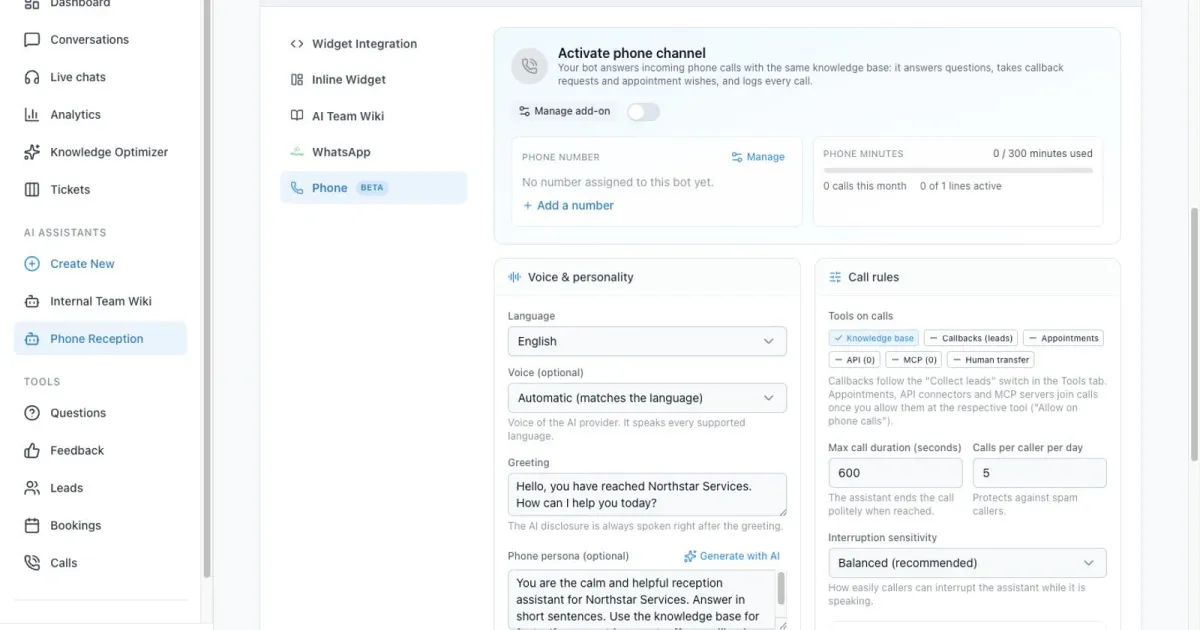
A safe AI phone assistant setup starts with the right number connection and ends with controlled voice, consent, limit, fallback and knowledge tests.
The Phone channel gives an existing chatbot a spoken interface. It uses the same indexed sources, assistant model and explicitly enabled tools, but a phone conversation adds timing, audio, consent, transfer and availability risks that a web chat does not have.
This guide uses the fictional assistant “TEST - Northstar Phone Reception,” the reserved example address support@example.com and controlled source facts. The linked video extends the setup with a real English browser-audio session: consent, known facts, a missing price, a simulated human-transfer decision and the stored Calls record are visibly checked. No number was bought or assigned, no PSTN or carrier call was placed and no real person was recorded.
Keep the production channel off while you work. Complete the text tests first, then repeat the controlled browser call with headphones. A production launch still needs one approved inbound carrier call, verified disclosure and consent behavior, staffed transfer routing, retention review and a rollback plan.
Privacy-protected two-click player
AI Phone Assistant Setup for Small Business: I Tested a Real Call
AI phone assistant setup step by step: choose a number connection, configure voice, greeting, call rules, consent, transfer and a knowledge test.
The YouTube player stays blocked until you choose Play. Loading it connects your browser to YouTube and may transfer technical data to Google.
Open directly on YouTubeWhat you will have at the end
- A documented decision for a rented number, forwarding or SIP
- A complete English TEST configuration for voice, persona, limits, transfer, consent and announcements
- A verified known answer and safe missing-information response in the Phone text simulator
- A written checklist for the still-required controlled audio and inbound-call test
Before you start
- Basic plan or higher with an active Voice add-on
- A clearly labeled TEST chatbot with indexed, approved and versioned knowledge
- A decision owner for number ownership, forwarding or SIP
- Approved test data, a privacy and retention policy, and a staffed fallback route
- Headphones and a controlled test number for the later audio and inbound-call stage
Chat knowledge becomes a phone conversation
Phone settings control how a call enters, sounds and ends: number connection, language, voice, greeting, persona, duration, caller limit, interruption behavior, transfers and system announcements. The chatbot model, indexed sources and enabled tools still determine the factual answer.
Treat testing as four separate layers. The text simulator proves knowledge and phone-persona behavior. The browser call proves voice, pace, pronunciation and interruption. A controlled inbound call proves the real number route, disclosure and consent. The Calls record proves that the expected operational result was stored. Passing one layer does not prove the next.
The interface keeps AI disclosure active and stores a written transcript only after caller consent. The conversation can continue without transcript storage. Your organization still needs a lawful purpose, access rules, retention period, deletion process and a clear answer for callers who decline.
01–09
Set it up step by step
Open Phone and check the account limits
Confirm minutes, lines and number capacity first.
Open the chatbot, go to Integrations and select Phone. The top cards show the activation switch, assigned number, monthly minutes, call count and concurrent lines.
The phone channel is available from Basic upward with an active Voice add on. Until the channel is active, or when minutes are exhausted, callers hear the unavailable announcement.
Choose how calls reach the assistant
Buy a number, forward your business line or connect SIP.
Open Numbers and connections. Buy a new number searches the provider inventory. Use your existing number explains forwarding. Own SIP connection links a PBX or SIP trunk.
For a new number, choose the country and optional digits. Results can require an address or full registration. Documents may be reviewed for one to five business days before the number is approved.
Understand forwarding and SIP details
Keep your established business number when that matters.
With call forwarding, your telephone provider sends calls from the existing business number to the assistant number. Rented assistant numbers cannot be ported to another provider.
For SIP, enter username, a password with at least twelve characters, host, port, transport and caller ID. After saving, point the PBX to the returned SIP URI. Releasing a rented number is permanent; unassign it instead when you may reuse it.
Set language, voice, greeting and persona
Make the first seconds clear and the behavior specific.
Language selects one spoken language or automatic detection. In automatic mode, define allowed languages and a fallback. Voice can stay Automatic or use a previewed voice.
Keep the greeting short because the required AI notice follows it automatically. The phone persona controls tone and focus, while safety and call rules still win. Add up to fifty product names or technical terms as recognition keywords.
Set call limits, transfer and consent behavior
Protect capacity and define the human fallback.
Max call duration defaults to 600 seconds and supports 60 to 1800. Calls per caller per day defaults to five and protects against spam. Interruption sensitivity controls how easily callers can speak over the assistant. Greeting can be interrupted decides whether early speech is accepted.
Forward to an employee uses an optional fallback number and selected contacts with responsibilities. Notification recipients receive useful call summaries. AI disclosure is always on. A transcript is stored only with caller consent.
Open the system announcement settings
Review what callers hear outside the normal conversation.
Customize system announcements opens the fixed messages for unavailable, all lines busy, goodbye, caller inactivity, employee transfer, time limit and used up minutes.
Empty fields use the professional default for the selected language. Only override a message when your wording is clearer and still gives callers a useful next step.
Review every announcement and save
Do not leave an error state with an unreviewed message.
Read every localized message aloud. Include a website, email or callback path where the channel may be unavailable for more than a few minutes.
Save settings before testing. A green Saved state confirms the current greeting, persona, rules and announcements were accepted.
Start with the text simulator
Check knowledge and persona without using phone minutes.
The text simulator uses message quota and is the fastest check for factual answers and tone. The browser call uses real call minutes and is needed for voice, pacing, interruptions and live tools.
Use a known question first. Then test an absent fact, a callback request and the end of a conversation.
Verify a real answer from the knowledge base
The phone persona must not replace factual retrieval.
We asked “What is the internal escalation code?” The simulator returned NORDSTERN-42 from the indexed internal document and continued in the configured concise phone style.
Next, run a browser call with headphones. Check the greeting, AI notice, pronunciation of product terms, interruption, one enabled tool and the goodbye message. Activate the channel only after those checks pass and a number is ready.
Example & result
See the practical test and its result
Every tutorial includes a fixed input, the expected outcome and a transparent record of what was actually verified locally.
Practical example: How to set up an AI phone assistant
This exact scenario was completed with the temporary tutorial account.
Exact test input
Ask in the Phone text simulator: “What is the internal escalation code?”
Expected result
The configured phone persona returns NORDSTERN-42 from the indexed source in a short spoken style.
What was actually verified
The real Phone text simulator answered NORDSTERN-42 from the uploaded fictional document and offered to continue. Browser audio, an inbound external call, transfer, caller consent and a live Calls outcome were not run and are not claimed.
Tips & tricks
Make the setup reliable
Test with realistic examples, record your baseline and change one setting at a time. That makes real improvements visible.
Improve the source before changing the voice
A polished voice cannot fix vague or conflicting content. Use short sections, explicit dates and one current policy version.
Use the chatbot model for the job
A fast model is usually best for reception and common questions. Use a stronger model only when repeated tests show a real gain for complex routing or language quality.
Write transfer responsibilities like routing rules
“Billing disputes and invoice corrections” is more useful than “Finance”. Specific responsibilities help the assistant choose the right person.
Separate content, voice and telephony tests
A correct text answer does not prove pronunciation or number routing. Record each layer separately with its exact input, expected result, observed result and owner.
Keep the fixed regression set small
Reuse one known fact, one missing fact, one handoff request and one goodbye after every meaningful source, role, model or phone-setting change.
When something does not work
Troubleshooting
Check status, permissions and test data systematically before changing the model or prompt.
The Phone panel says the feature or test is unavailable
Confirm the owner has a Basic-or-higher plan, an active Voice add-on and remaining test quota. Do not bypass the gate or activate the channel to diagnose it.
The simulator answer is correct in chat but awkward for speech
Shorten the phone persona, request short sentences, split dates and identifiers clearly, and repeat the fixed test. Change the factual source only when the fact itself is wrong.
A product name or code is transcribed incorrectly
Add the exact term once to speech-recognition keywords, remove competing spellings and test it in browser audio with natural surrounding sentences. The text simulator cannot verify speech recognition.
Callers reach a dead end when the channel is busy or off
Rewrite the matching system announcement with one monitored website, email or callback route, verify the route outside the phone assistant and assign an owner before launch.
The text simulator passes but a real call fails
Keep the channel restricted. Check number assignment, forwarding or SIP, minute and concurrency limits, microphone and network behavior, language and voice provider, disclosure, consent and the final Calls record in that order.
Ready for a production-style test
Run the remaining tests as a controlled pilot: browser audio with headphones, one inbound call from an approved test number, consent accepted and declined, one transfer or documented callback fallback, and the matching test-only Calls record. Publish the number only after every result has an owner and a rollback action.